Text to imageArt stylesStyle guide
One Plum · Soft-Pastel Layering
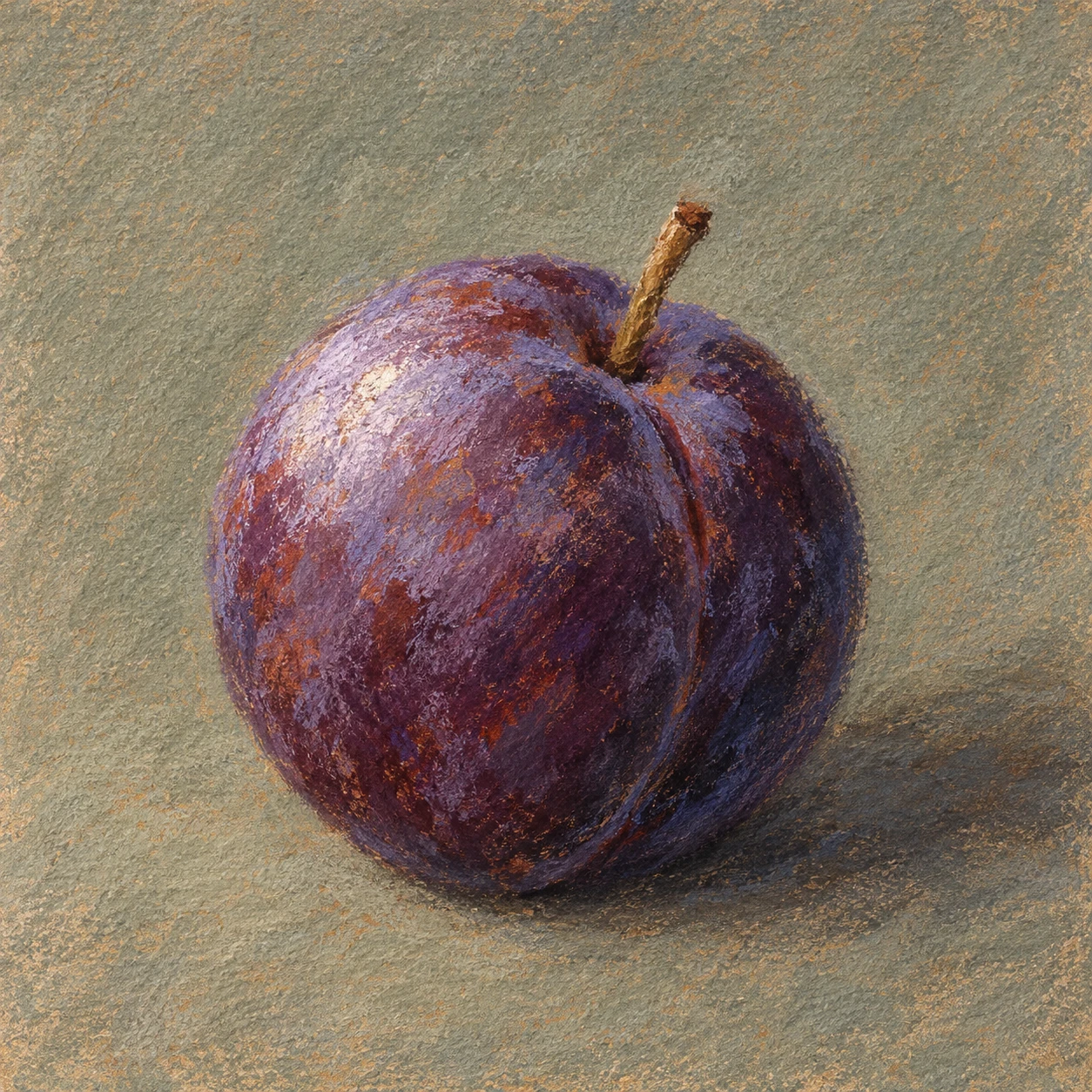
Build a plum’s rounded volume with layered pastel strokes that leave undercolor visible through the paper tooth.
One Plum · Soft-Pastel Layering
- Shape & line
- Build the rounded silhouette with broad strokes from the side of a soft pastel stick. Turn the strokes around the fruit’s volume, describe the shallow seam with a short curved dark stroke, and let selected contour segments break into the paper rather than enclosing the plum in a uniform outline.
- Color & light
- Place the light at the upper left of the image. Layer pale lavender over the upper-left bulge, retain richer violet through the middle, and deepen the lower-right curve with blue-purple; place a subdued cast shadow on the surface extending toward image-right from the plum’s base.
- Texture & material
- Use visibly toothed paper and lay down a muted rust underlayer before adding purple. Apply the upper layers lightly enough that scattered warm flecks remain between powdery strokes; press more firmly only in a few light-facing patches, keeping both loose pigment and exposed paper grain visible.
- Composition
- Let the plum occupy roughly half the image width, with the stem rising into clear background space. Keep the background as a sparse field of broad gray-green pastel marks, and concentrate the strongest value changes around the fruit so its small seam, light patch, and grounded base remain easy to read.
Priority
Prioritize broken pastel layers that reveal warm undercolor while clearly modeling the plum.
What to avoid & what to check
Avoid glossy photographic shading and uniformly smoothed pigment.
Check that warm flecks remain visible between purple strokes and the upper-left light agrees with the rightward cast shadow.
Exact prompt for this example
SUBJECT
One ripe purple plum with a short brown stem and a shallow natural seam, resting on a plain muted gray-green surface.

COMPOSITION
Use a close three-quarter view from slightly above. Center the plum slightly below the image midpoint, with its stem and seam clearly readable and ample quiet space around its silhouette.

STYLE GUIDE
1. Shape & line
Build the rounded silhouette with broad strokes from the side of a soft pastel stick. Turn the strokes around the fruit’s volume, describe the shallow seam with a short curved dark stroke, and let selected contour segments break into the paper rather than enclosing the plum in a uniform outline.

2. Color & light
Place the light at the upper left of the image. Layer pale lavender over the upper-left bulge, retain richer violet through the middle, and deepen the lower-right curve with blue-purple; place a subdued cast shadow on the surface extending toward image-right from the plum’s base.

3. Texture & material
Use visibly toothed paper and lay down a muted rust underlayer before adding purple. Apply the upper layers lightly enough that scattered warm flecks remain between powdery strokes; press more firmly only in a few light-facing patches, keeping both loose pigment and exposed paper grain visible.

4. Composition
Let the plum occupy roughly half the image width, with the stem rising into clear background space. Keep the background as a sparse field of broad gray-green pastel marks, and concentrate the strongest value changes around the fruit so its small seam, light patch, and grounded base remain easy to read.

PRIORITY
Preserve the requested identity, count, action, composition and output settings. Apply the style rules within those constraints; a style reference must not replace the subject or layout. Within the style: Prioritize broken pastel layers that reveal warm undercolor while clearly modeling the plum.

AVOID
Avoid glossy photographic shading and uniformly smoothed pigment.

OUTPUT
Create one square image with no lettering, labels, signature, or watermark.

SELF-CHECK
Check that warm flecks remain visible between purple strokes and the upper-left light agrees with the rightward cast shadow.
Model information comes from image provenance. The same prompt may produce a different result.